Guide 7 of 10
Controlling apps
Three ways to treat a single app differently: cut it off, take it out of Demarc’s sight, or fence it with a rule. A quick table at the end helps you choose.
Per-app firewall
Guard › Per-app firewall. The simplest control Demarc has: this app can use the internet, or it cannot.
Choose which apps are online
Each app has a switch and a status of Internet allowed or Internet blocked. Apps are listed under Blocked and Allowed, with a search box. Tap an icon to open the app’s detail.
Explain blocks (on by default) notifies you when an app you are using is blocked here, with an Unblock button on the notification.
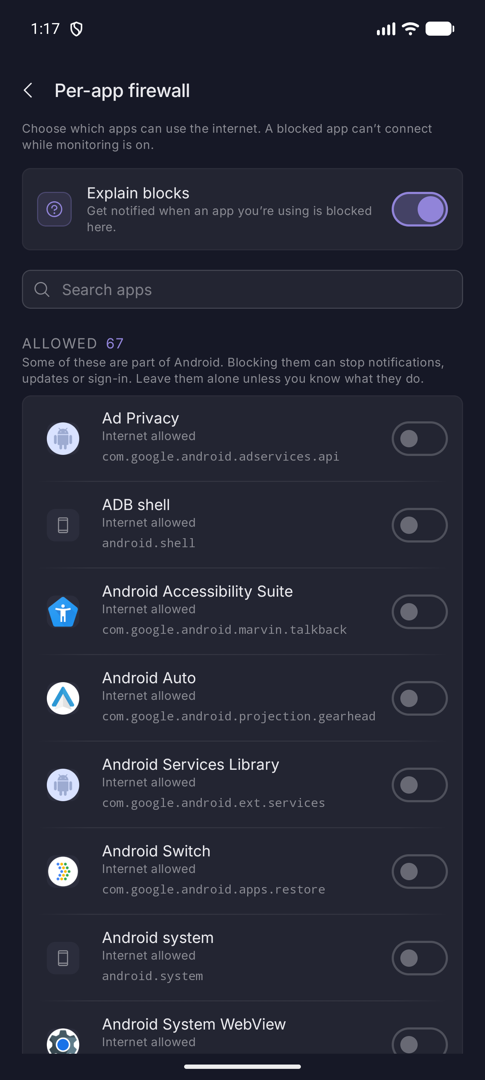
The same switch exists as Block internet on an app’s detail page, and as Block this app’s internet on a connection. They are one setting. A blocked app cannot connect while monitoring is on.
Excluded apps
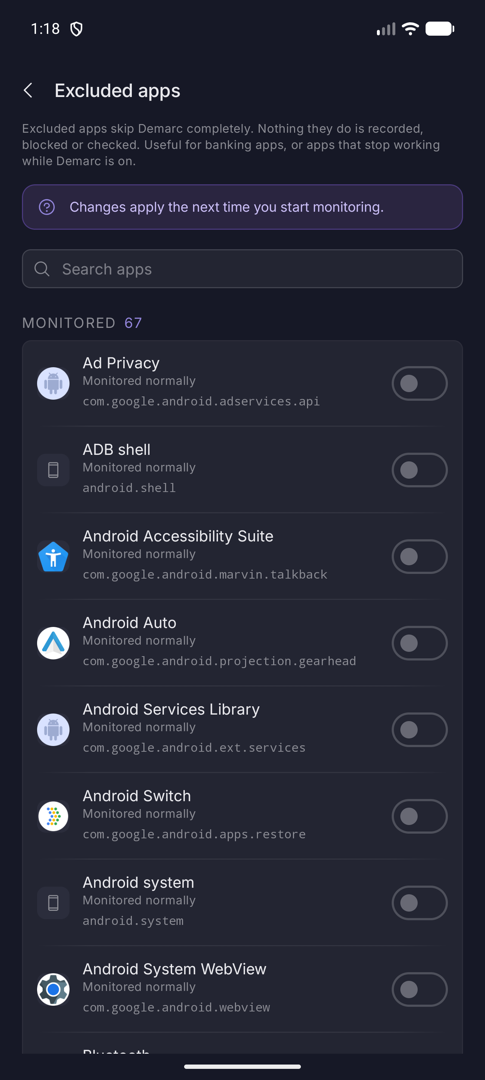
The opposite of blocking: apps Demarc ignores completely.
Skip an app entirely
Settings › Monitoring › Excluded apps. An excluded app is not recorded, blocked or checked, and its traffic bypasses Demarc. That makes it useful for banking apps, or apps that stop working while Demarc is on.
Changes apply the next time you start monitoring. If monitoring is running, a Restart button appears.
Which control should I use?
| I want to… | Use |
|---|---|
| Stop one app from using the internet at all | Per-app firewall, or Block internet on the app’s page. |
| Stop everything for a while | Block all internet (Lockdown), or the Quick Settings tile. |
| Stop one site or one kind of traffic | A rule, or a blocklist. |
| Stop an app only at certain hours | A scheduled rule naming that app. |
| Make an app work that Demarc is breaking | Excluded apps, or an Allow rule above the block. |
| Pause everything briefly | Pause on Watch (15 minutes). |