Guide 6 of 10
Firewall rules
Rules are how you tell Demarc exactly what your apps may reach. These guides cover the whole life of a rule: how the list works, writing, changing and removing rules, and the options that go with them.
How rules work
One ordered list, checked from the top. The first rule that matches decides. Anything no rule covers falls through to the default at the bottom.
Anatomy of the list
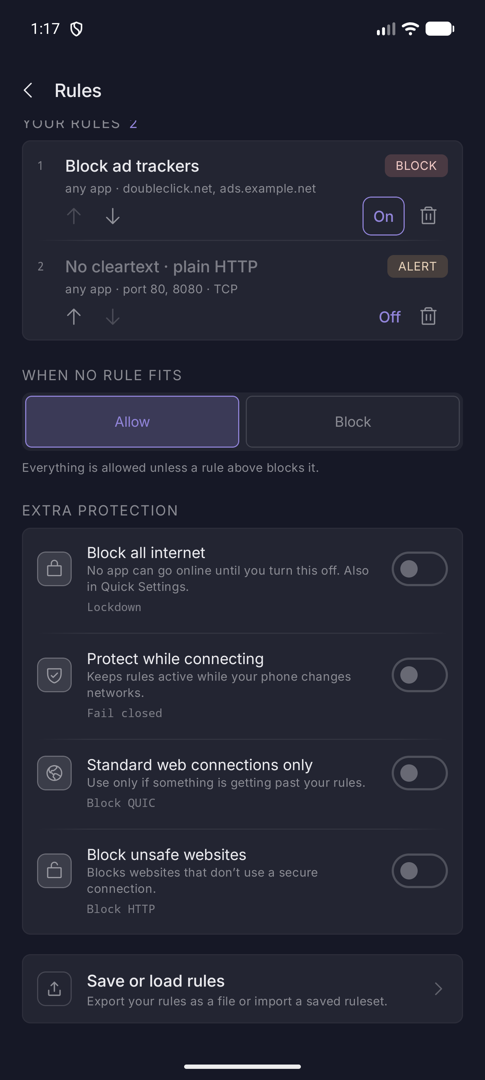
Guard › Rules. Your rules are numbered in the order they are checked, because order is what people get wrong with firewalls. Each row has move up, move down, an On/Off switch and a bin.
When no rule fits is the default: Allow (everything is allowed unless a rule blocks it) or Block (everything is blocked unless a rule allows it, including apps you have not set up yet, so some may stop working).
The three actions
| Action | Effect |
|---|---|
| Block | Matching connections are refused. |
| Allow | Matching connections go through and skip the blocklists. Allow rules are placed at the top of the list so they can take effect. |
| Alert | The connection is allowed and you are notified; it also appears in What needs a look. |
Create a rule
From an empty list to an enforced rule in five steps. The example blocks two advertising domains for every app.
01
Open Rules
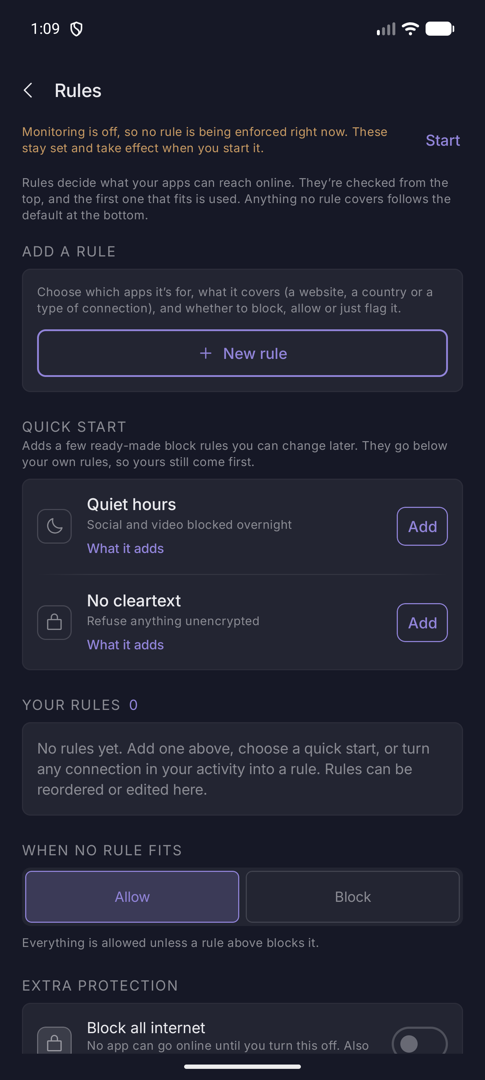
Go to Guard and tap Rules. A new install has none, and the list says so. Everything is allowed until a rule, or the default at the bottom, says otherwise.
Starting a rule from a connection you just saw in Watch is faster still: open it and tap Make a rule from this, and the form arrives filled in.
02
Choose what it does
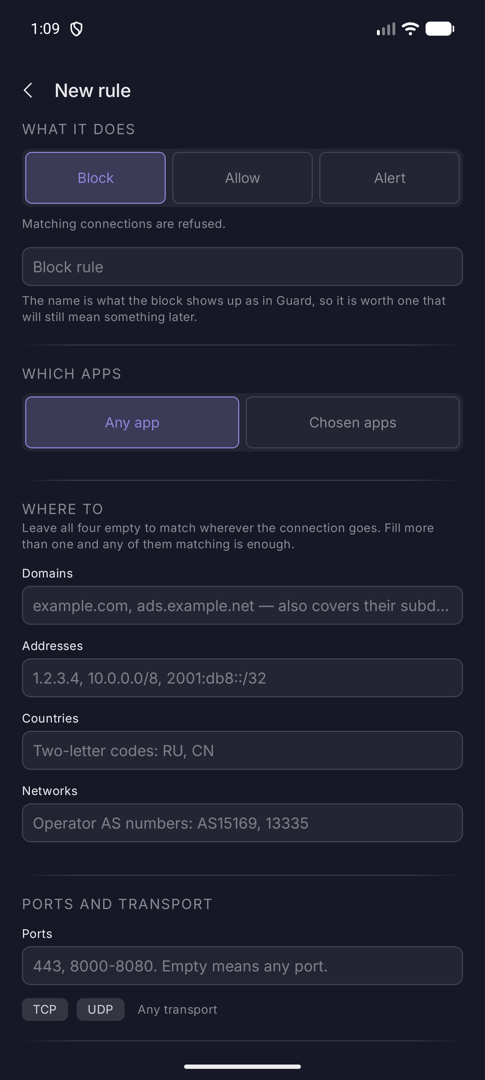
Tap New rule. Pick Block to refuse matching connections, Allow to let them through even if a later rule would block them, or Alert to flag them without interfering.
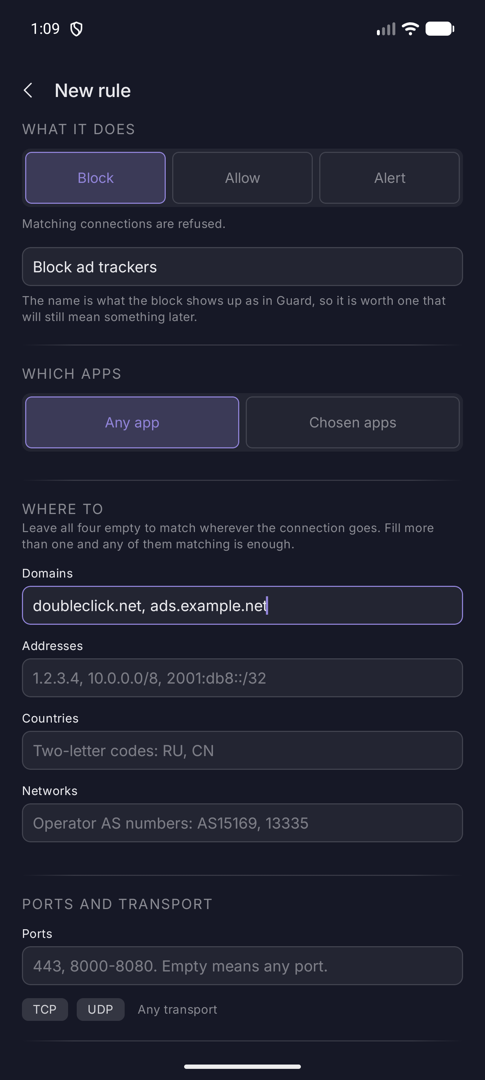
Give it a name you will still understand in a month. It is the name the block shows up as in Guard. Then choose Any app or Chosen apps.
03
Say where it goes
Fill in any of Domains, Addresses, Countries and Networks. A domain also covers its subdomains. Leave all four empty to match wherever the connection goes.
Fill more than one and any of them matching is enough, so a rule naming a domain and a country matches either. Further down, narrow it by port and by TCP or UDP.
04
Check it and save
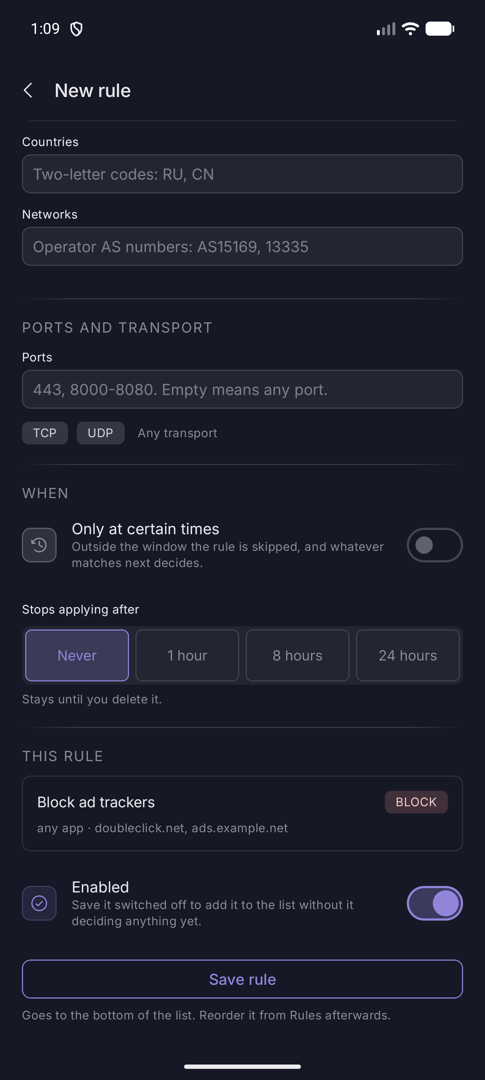
Optionally limit the rule to certain hours, or have it stop applying after 1, 8 or 24 hours. This rule then reads back what you have built as one sentence: here, "any app · doubleclick.net, ads.example.net".
Tap Save rule. It goes to the bottom of the list and starts working the next time monitoring is on. Turn Enabled off first if you want it saved but not deciding anything yet.
05
See it in the list
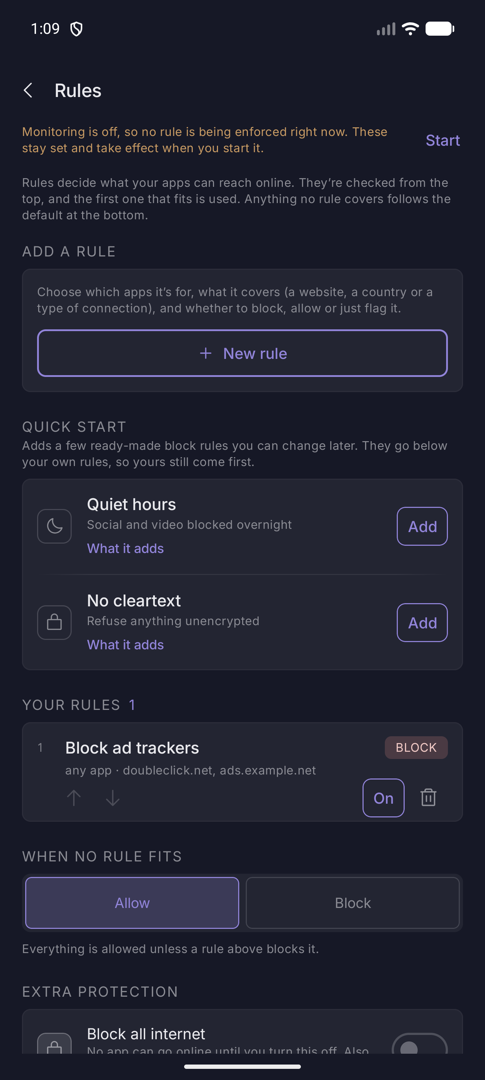
The new rule appears under Your rules with its number, action and a summary of what it matches. Rules are checked from the top and the first match wins, so use the arrows to move a rule up when order matters.
Edit a rule
Change what a rule matches, what it does, or whether it is on. It keeps its place in the list.
01
Open the rule
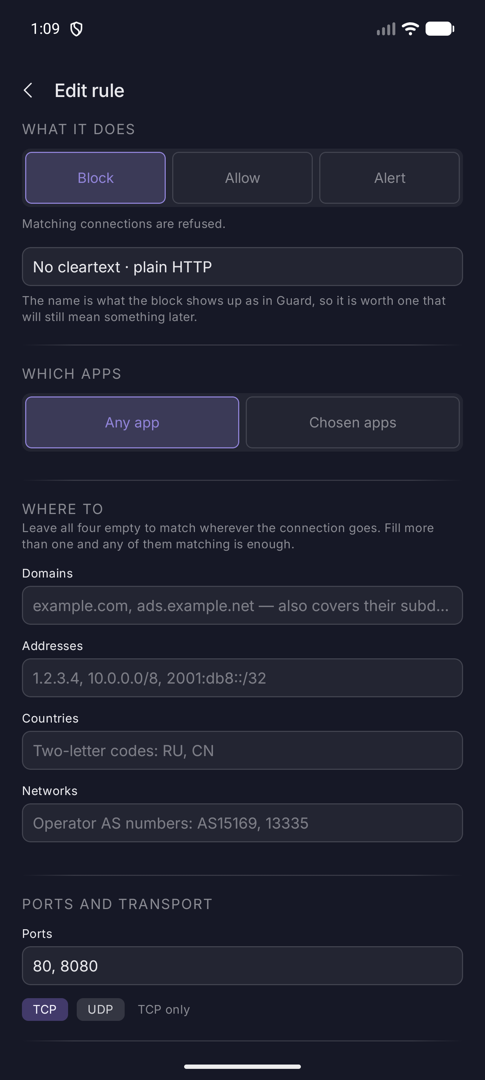
On the Rules screen, tap the rule itself. Rules added from a quick start preset are ordinary rules, so they can be edited like your own. Here, the preset's plain HTTP rule is opened.
The form is the same one you used to create it, with the title Edit rule.
02
Change it and save
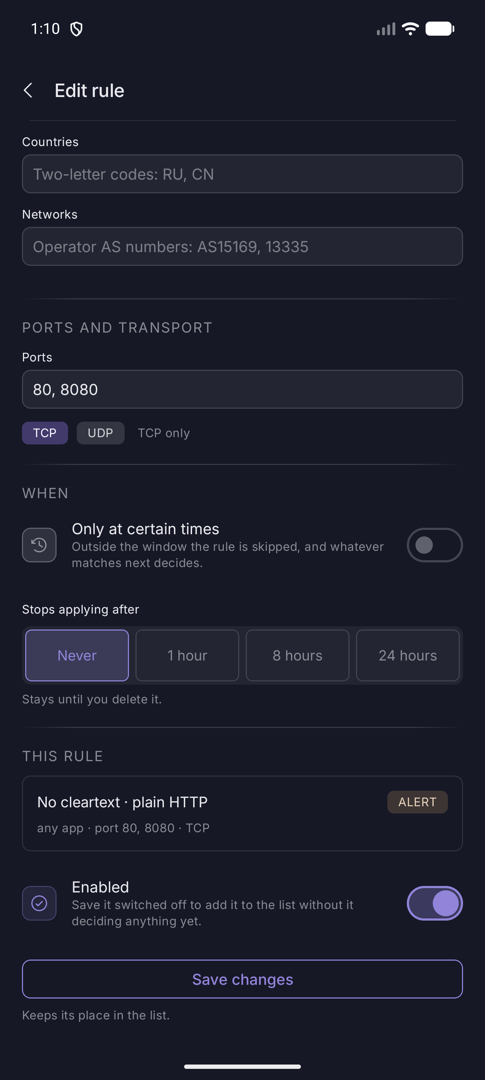
Change anything: the action, the name, the apps, the destinations, the ports or the schedule. The summary under This rule updates as you go. In this example the action went from Block to Alert.
Tap Save changes. The rule stays at the same position, so editing never changes which rule wins.
03
Confirm in the list
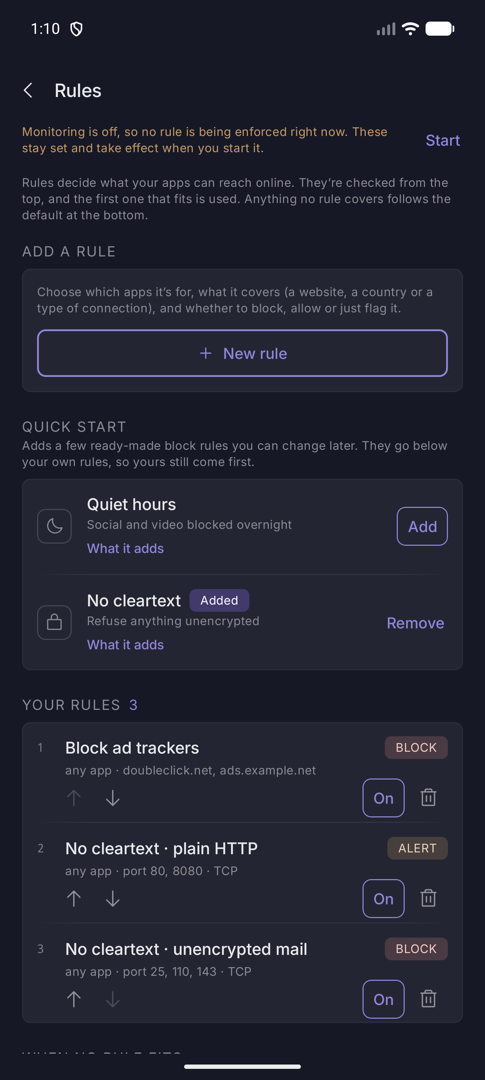
The row now shows the new action. Use the On / Off switch on any row to pause a rule without losing it, and the up and down arrows to change its priority.
Delete a rule
Remove a rule for good. Everything it was deciding goes to the next rule that fits.
01
Tap the bin
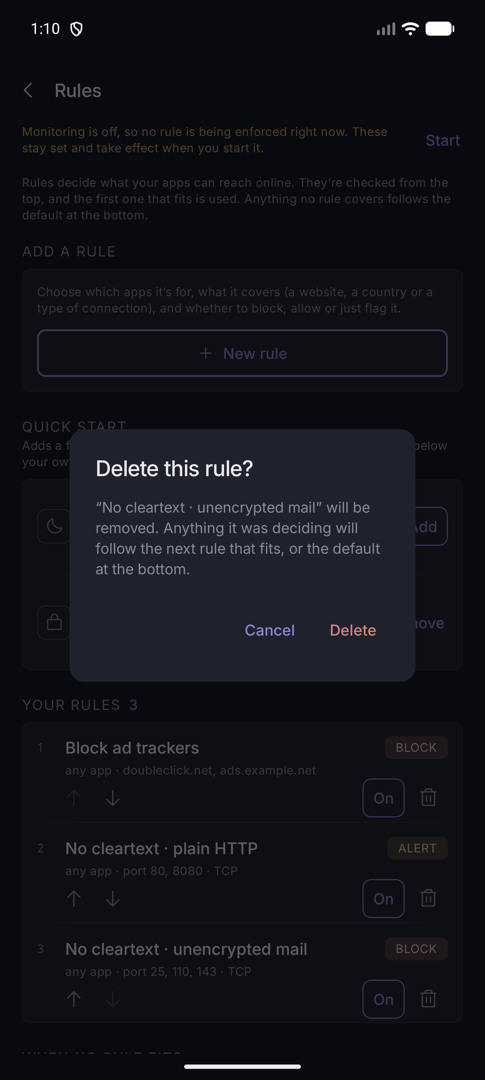
Each row has a bin icon on the right. Tap the one on the rule you want gone.
Demarc asks first. The dialog names the rule and says what happens next: anything it was deciding follows the next rule that fits, or the default at the bottom of the list.
02
Confirm
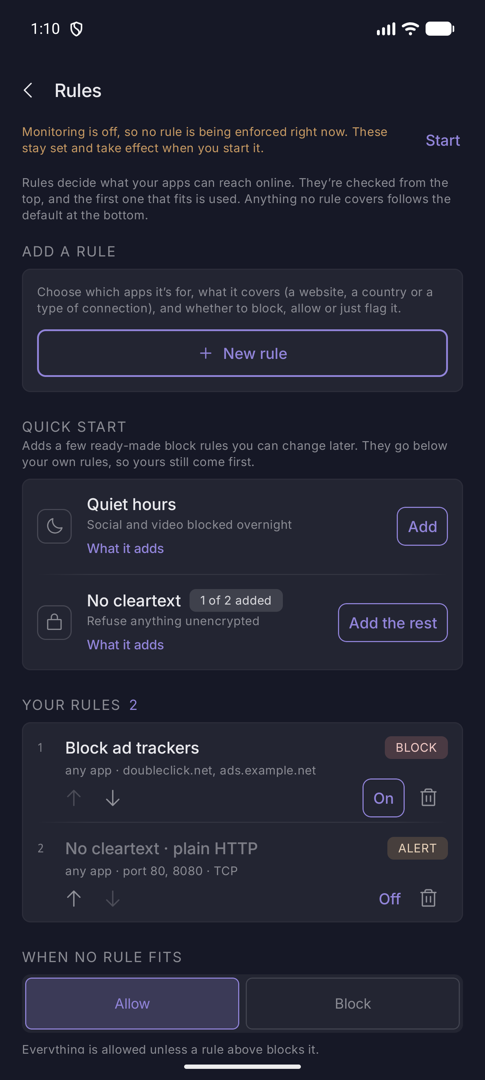
Tap Delete. The rule disappears and the rules below it renumber. Cancel leaves everything as it was.
There is no undo, so for a quick start preset you can instead use Remove beside it to take out everything it added, or add the preset back later. A rule you only want to pause can be switched Off, as the second row shows.
Quick start presets
Ready-made rules to start from. They are ordinary rules once added, so you can edit, reorder or delete them.
| Preset | What it adds |
|---|---|
| Quiet hours | Blocks social and video sites overnight, 23:00 to 06:30 every day: instagram.com, facebook.com, tiktok.com, snapchat.com, x.com, twitter.com, reddit.com, youtube.com and twitch.tv. |
| No cleartext | Refuses unencrypted traffic: plain HTTP on ports 80 and 8080, and unencrypted mail on ports 25, 110 and 143, on every network. |
Tap What it adds to see the rules before adding them. Add appends them below your own rules, so yours still come first. Afterwards the row reads Added, or 1 of 2 added with Add the rest if you deleted some; Remove takes the preset out. Presets never change the default, lockdown or blocklists, and never target specific apps.
What a rule can match
Combine any of these in one rule. Within one rule, leave a field empty to mean “anything”.
| Field | Accepts | Notes |
|---|---|---|
| Which apps | Any app, or chosen apps | Pick from the installed list; there is a search box. |
| Domains | example.com, ads.example.net | Also covers every subdomain. |
| Addresses | 1.2.3.4, 10.0.0.0/8, 2001:db8::/32 | IPv4 or IPv6, single addresses or ranges. |
| Countries | Two-letter codes: RU, CN | Needs the location database. Until it is on, this part never matches. |
| Networks | Operator AS numbers: AS15169, 13335 | Same database requirement. |
| Ports | 443, 8000-8080 | Empty means any port. |
| Transport | TCP, UDP | Neither or both means any. |
Schedules and expiry
A rule can apply only at certain hours, or remove itself after a while.
In the rule form, under When, switch on Only at certain times. Choose the days (none chosen means every day) and a From and To time in 24-hour format. Outside the window the rule is skipped, and whatever matches next decides.
The same start and end means all day. A window that ends before it starts runs overnight, which is how Quiet hours works.
Stops applying after is separate: Never, 1 hour, 8 hours or 24 hours, after which the rule deletes itself. It is handy for a temporary block.
Extra protection
Four switches at the bottom of Rules. Each shows its technical name in small type.
| Switch | Technical name | What it does |
|---|---|---|
| Block all internet | Lockdown | No app can go online until you turn it off. It overrides everything and tears down open connections. Also available as a Lockdown tile in Android’s Quick Settings (add it from the tile editor). |
| Protect while connecting | Fail closed | Keeps rules active while your phone changes networks, and also applies to unknown or unnamed traffic. |
| Standard web connections only | Block QUIC | For when something is getting past your rules. Forces browsers to fall back to ordinary HTTPS. |
| Block unsafe websites | Block HTTP | Blocks websites that do not use a secure connection. |