Guide 2 of 10
Watching traffic
Everything on the Watch tab: how monitoring starts and stops, the Today and Week summaries, the live connection list, and the detail page behind each connection.
Starting, stopping and pausing
Monitoring is what lets Demarc see traffic at all. Nothing is recorded, blocked or checked while it is off.
| Control | Where | What it does |
|---|---|---|
| Start / Stop | Pill at the top of Watch; also Settings › Monitoring | Starts or ends monitoring. The label beside it reads “since 1:18 PM” while running and “not running” when off. |
| Pause / Resume | Footer of Watch; also Settings | Pauses for 15 minutes, then resumes by itself. While paused traffic still flows, but nothing is recorded, blocked, firewalled, ruled or checked. |
| Always monitor | Settings › Monitoring | Off by default. When on, monitoring starts by itself when you open Demarc or restart your phone. |
| Always-on VPN | Settings › Monitoring | Opens Android’s own VPN settings, where you can have Android keep Demarc running from the moment the phone turns on. It is the only hard guarantee that monitoring is up. |
Running, then paused
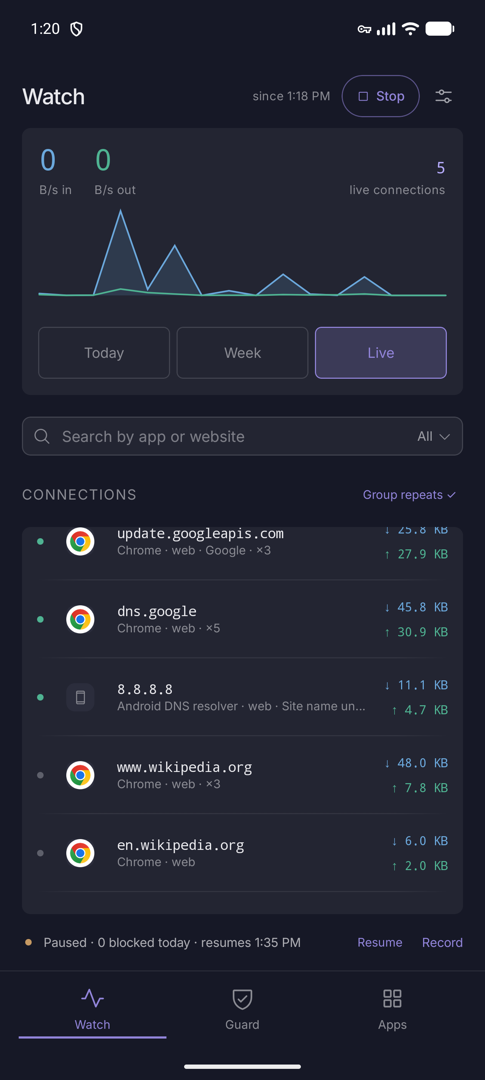
The footer is the status line: Protecting while running, Paused with the time it resumes, and a count of what was blocked today. Pause and Record sit at the right of it.
The key icon in the status bar is Android’s own sign that a VPN is active. It stays for as long as monitoring runs.
Today
The default view: how much is moving, and who is responsible.
The live meter
At the top, throughput in and out, the number of live connections, and a sparkline of the recent past. The Today / Week / Live switch underneath chooses what the rest of the screen shows.
Connection names the network you are on and says what it can learn about you. “The sites you look up are visible” means every name your phone resolves can be read by your network and provider; Android Settings › Network › Private DNS, or Demarc’s own encrypted lookups, change that.
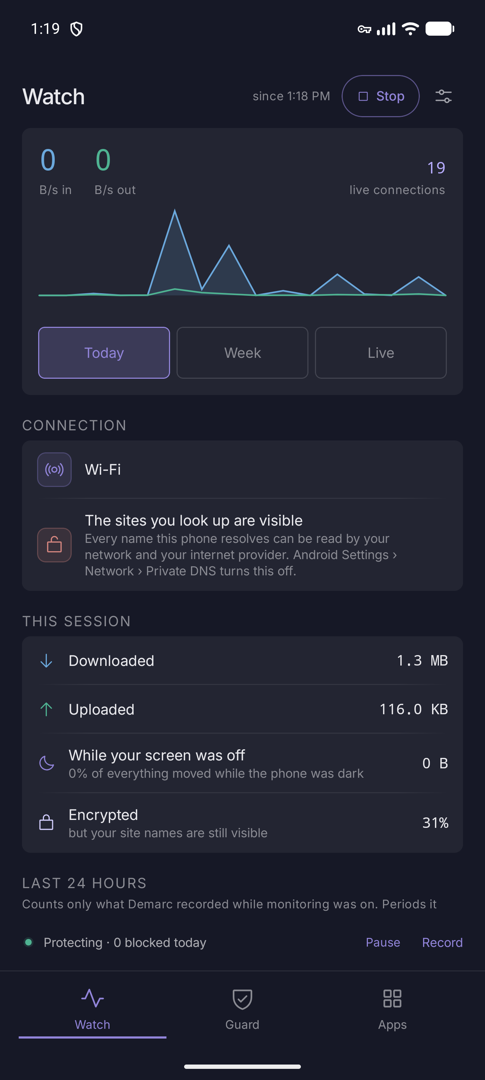
This session totals what has moved since monitoring started: Downloaded, Uploaded, While your screen was off, Moved despite Doze (traffic Android had told an app to stop, which went anyway) and Encrypted, as a percentage, with a note on whether site names were hidden too.
Last 24 hours is an hourly chart. It counts only what Demarc recorded while monitoring was on; periods it was off are drawn as a faint mark, not as zero. Which apps lists the apps that moved data in the background or with the screen off. Timeline there opens a view of which app you were using, which needs Usage access (see Permissions).
Week
Two weeks of history, kept on the phone.
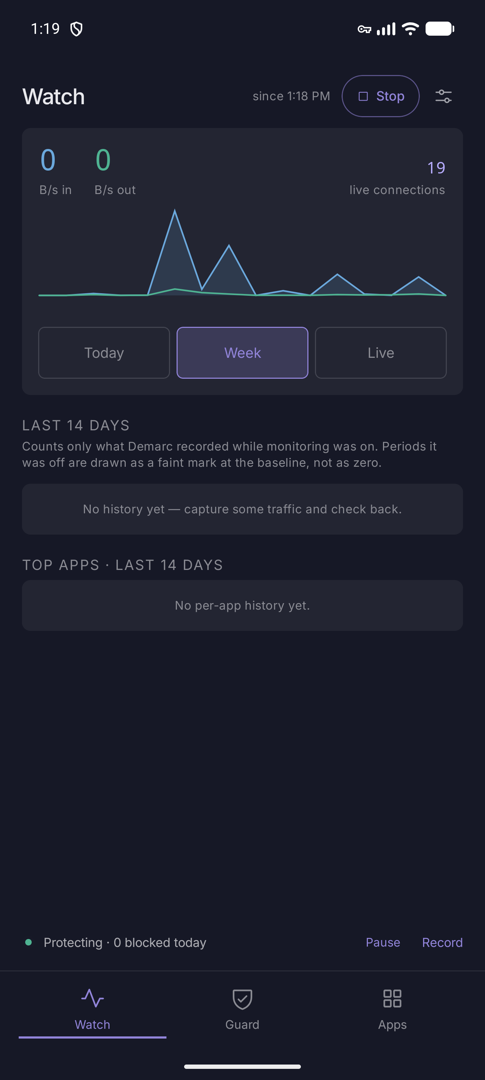
Last 14 days
Daily bars for the last 14 days, and Top apps for the same window. Tap an app for its detail page.
Until you have captured some traffic it reads “No history yet — capture some traffic and check back.” See Stored data for how long each kind of history is kept.
Live connections
Every flow as it opens, with the app that owns it.
Reading the list
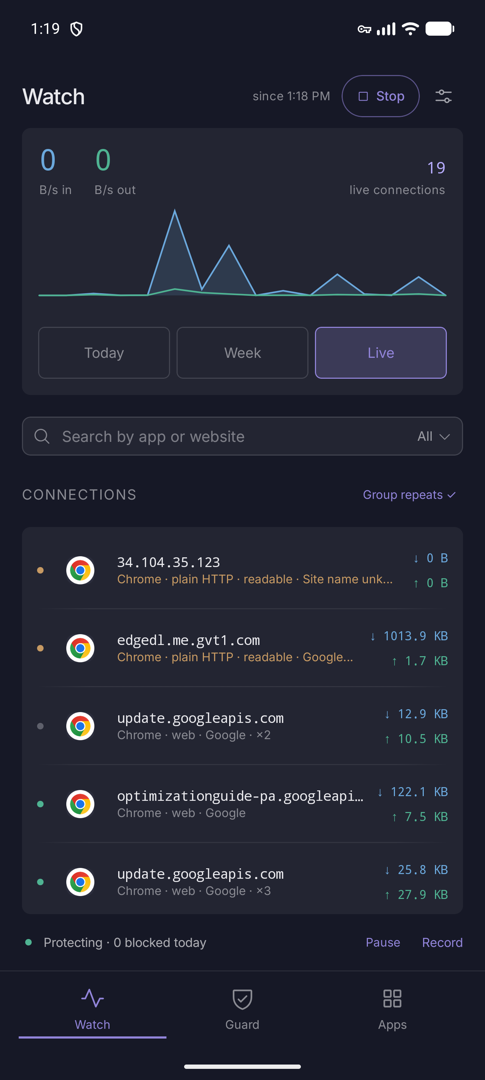
Each row shows the destination, then the app, a protocol tag, the company or operator and country when known, and bytes each way. A dot on the left gives the state: red blocked, amber readable, green live, grey closed.
Group repeats (on by default) folds repeat connections from one app to the same host into a single row marked ×3. Blocked ones group on their own. Tap the app icon for the app, or the row for the connection.
Search and filter
The search box matches app name, site name, address and port. The menu at its right filters the list:
| Filter | Shows |
|---|---|
| All | Every connection. |
| DNS requests | The names apps looked up, with a status of resolved, no answer, waiting or blocked and its category. If your phone uses Private DNS over TLS, this list cannot see lookups and says so. |
| Web (HTTPS) | Port 443. |
| Blocked | Only what Demarc stopped, with the reason. |
| Reliable (TCP) / Fast (UDP) | By transport. |
What the tags mean
| Tag | Meaning |
|---|---|
| plain HTTP · readable | Not encrypted. Anyone on the network path can read it. |
| web / encrypted | TLS. The site name may be visible, the contents are not. |
| lookup | A DNS lookup. Lookup · readable is an unencrypted one. |
| clock / local / call setup | NTP time sync, local-network discovery, and STUN for calls. |
| Tracker | The destination is a known tracking company. |
| blocked at … | What stopped it: a list, a rule, the per-app firewall, and so on. |
One connection, in full
Tap any row for everything Demarc knows about it, and for ways to act on it.
The top bar says whether anyone else could read it: Nobody else can read this or Anyone on this network can read this. Below that are four buttons:
| Button | What it does |
|---|---|
| Block this site | Adds the host to your own blocklist. An Undo bar appears. Shown only when the site name is known. |
| Make a rule from this | Opens the rule editor with the app, domain, port and transport filled in. See Create a rule. |
| Block this app’s internet | Cuts the whole app off. Becomes “Internet already blocked” once done. |
| Copy | Copies host:port. |
The cards below group the facts: This connection (protocol, state, what blocked it, operator, destination, site name), When it happened (foreground or background, screen on or off, first and last seen, background and screen-off data), Traffic (bytes and packets each way), Encryption details (server name and the app’s TLS fingerprint) and Where it went (country, network and operator, once the location database is on).