Guide 5 of 10
Blocklists and threat protection
Blocklists, your own list, and threat intelligence: what to switch on, what each does, and where blocking cannot reach.
Blocklists
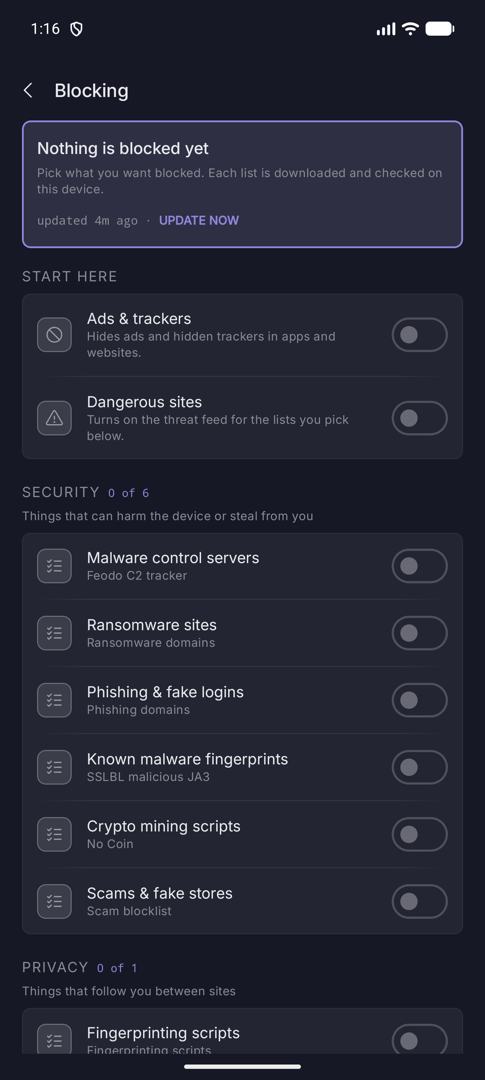
Guard › Blocklists (the screen is titled Blocking). Everything here is off until you turn it on.
Start here
Two master switches. Ads & trackers hides ads and hidden trackers in apps and websites using a tracker list built into the app. Dangerous sites turns on the threat feed for whichever of the lists below you choose.
Update now in the top card downloads the lists you picked. Blocklist downloads are the one place Demarc reaches out to the internet for itself, and only for lists you turned on.
The lists
| Group | Plain name | Source |
|---|---|---|
| Security | Malware control servers | Feodo C2 tracker, abuse.ch |
| Ransomware sites | Ransomware domains, Block List Project | |
| Phishing & fake logins | Phishing domains, Block List Project | |
| Known malware fingerprints | SSLBL malicious JA3, abuse.ch | |
| Crypto mining scripts | No Coin, adblock-nocoin | |
| Scams & fake stores | Scam blocklist, durablenapkin | |
| Privacy | Fingerprinting scripts | StevenBlack |
| Content | Adult content | StevenBlack |
| Betting & casinos | StevenBlack | |
| Social networks | StevenBlack |
Ten lists, none on by default: every blocklist has false positives, and which ones your phone accepts is not a choice Demarc makes for you. Lists are matched on your device, so what you look up is never sent to whoever publishes them. A warning icon on a list means its last download failed or came back empty. Credits in Settings names every list and its licence.
Your own list
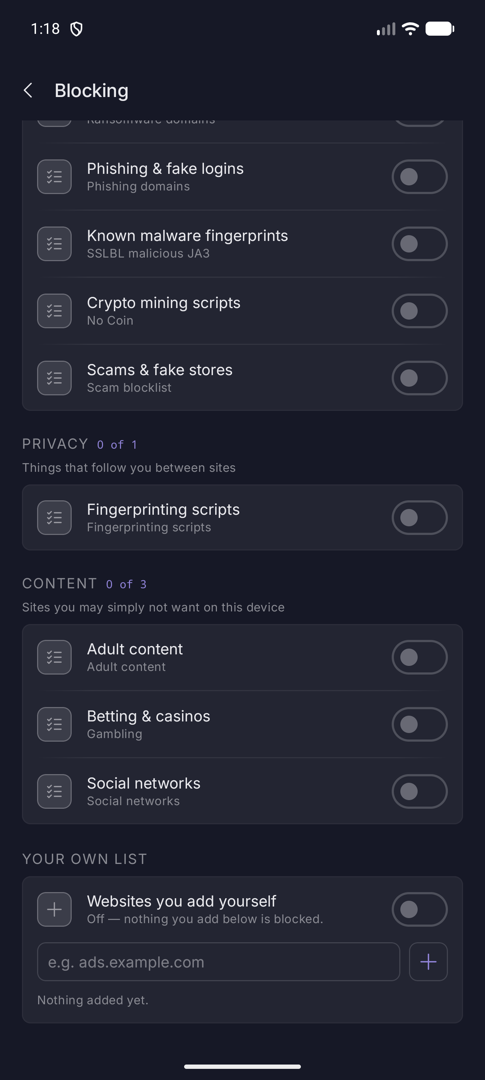
At the bottom, Websites you add yourself. Turn it on, type a domain such as ads.example.com, and tap the plus. A bin icon removes an entry. This is also where Block this site on a connection adds to.
Use it for the one site you want gone without enabling a whole category.
How a block works
Demarc stops a connection in the most specific way it can.
| Method | Applies to |
|---|---|
| DNS sinkhole | A blocked name gets an empty answer (0.0.0.0 or ::). Demarc sees every lookup only when Encrypt website lookups is on; otherwise it sees plain DNS on port 53. |
| Address block | Connections to a blocked IP are reset as they open. |
| Site-name block | HTTPS and QUIC (HTTP/3) connections are matched on the server name in the handshake. |
Threat intelligence and alerts
Guard › Threat intelligence (titled Protection & alerts). Checks traffic and tells you when something looks wrong.
Dangerous sites and suspicious behaviour
Block dangerous sites stops apps reaching harmful sites. Pause risky apps goes further: it cuts an app’s internet for 24 hours if it tries a harmful site. Release it from Rules, where the quarantine appears as an expiring rule.
Suspicious behaviour works even with blocking off: Unusual activity (on by default) flags an app sending much more than usual, New connections flags an app reaching somewhere new against its last 30 days, and Background activity flags an app using the internet while closed, over a threshold of 1, 10 or 50 MB (10 by default).
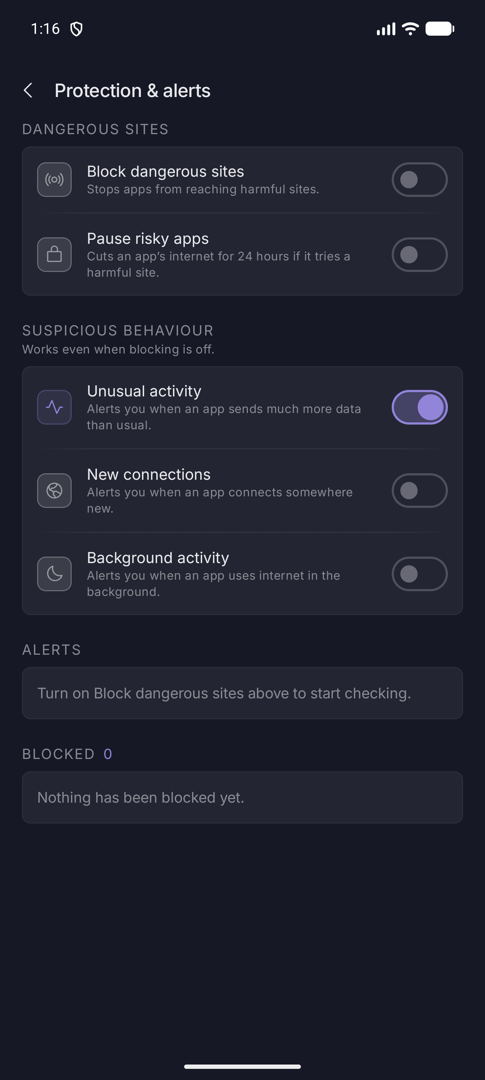
Below the switches, Alerts lists apps that tried a dangerous site, with the category, host and time, and Blocked lists what was stopped, newest first.