Guide 1 of 10
Getting started
Demarc, screen by screen: the first run, then a tour of Watch, Apps, Guard, Rules and Settings. Start at the top on a first run, or jump to the part you need.
First run
Three screens stand between installing Demarc and seeing your first connection. Two of them are Android's, not ours.
01
Welcome
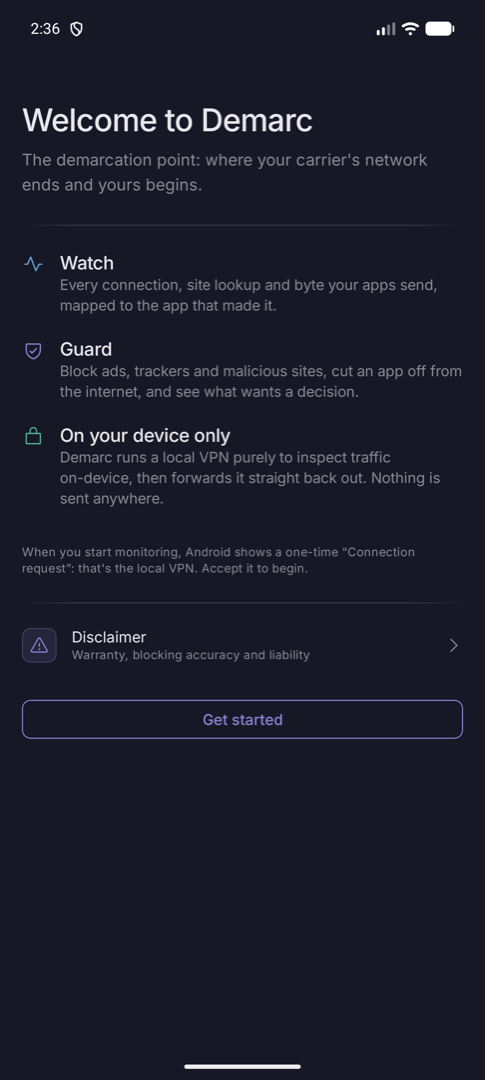
Demarc opens on what it does and where it keeps things. The short version: it runs a local VPN so Android hands it every packet to look at, then forwards that traffic straight back out. Nothing is uploaded, and there is no account.
The Disclaimer row opens the terms before you start, not after. It is also in Settings whenever you want it again.
02
Notifications
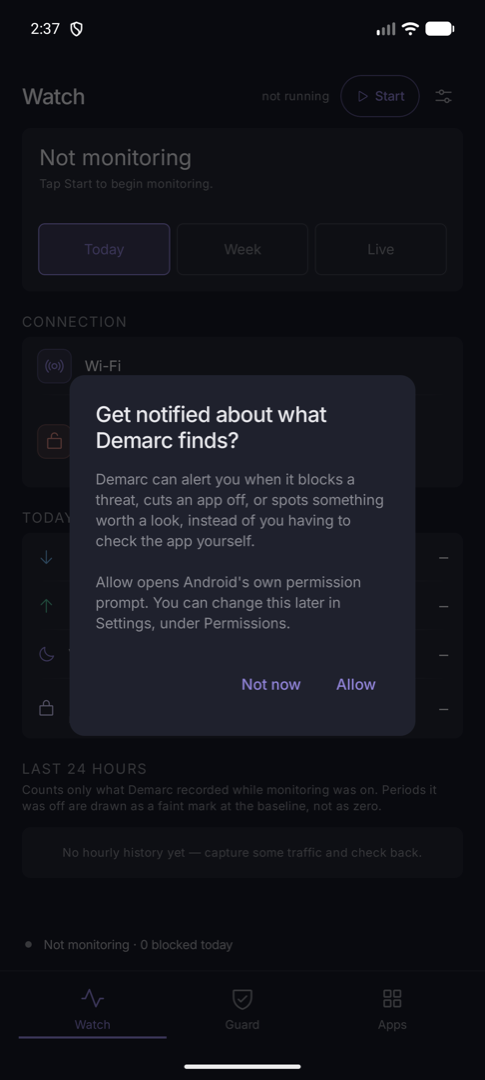
Demarc explains what it would notify you about before Android asks: a blocked threat, an app cut off, something worth a look. Not now is a real answer — monitoring works either way, and you can change it later in Settings.
03
Connection request
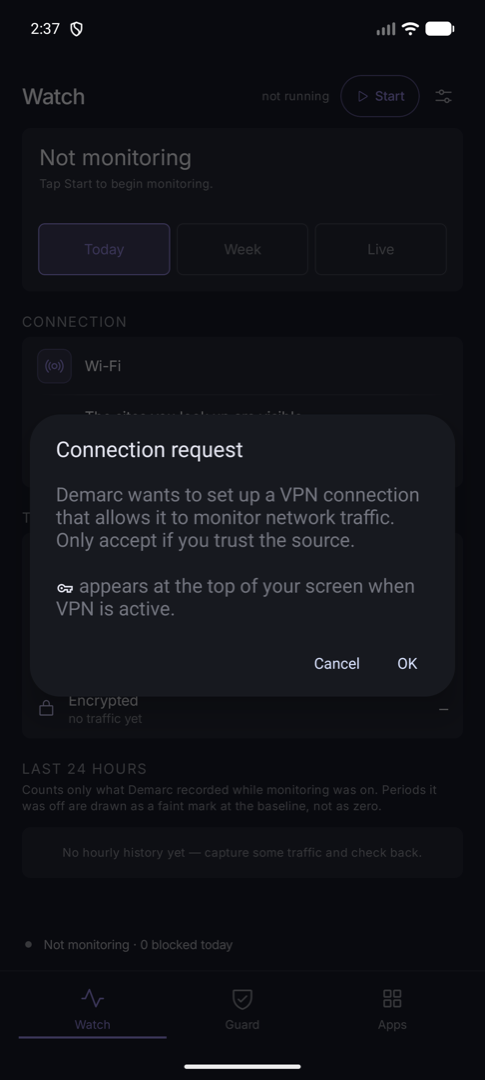
This one is Android's, and it appears for every VPN app on the platform. It is the permission that lets Demarc see traffic at all.
The wording is Android's too, including "monitor network traffic". That is exactly what Demarc does — on your phone, and only there. Tap OK and monitoring starts.
Watching
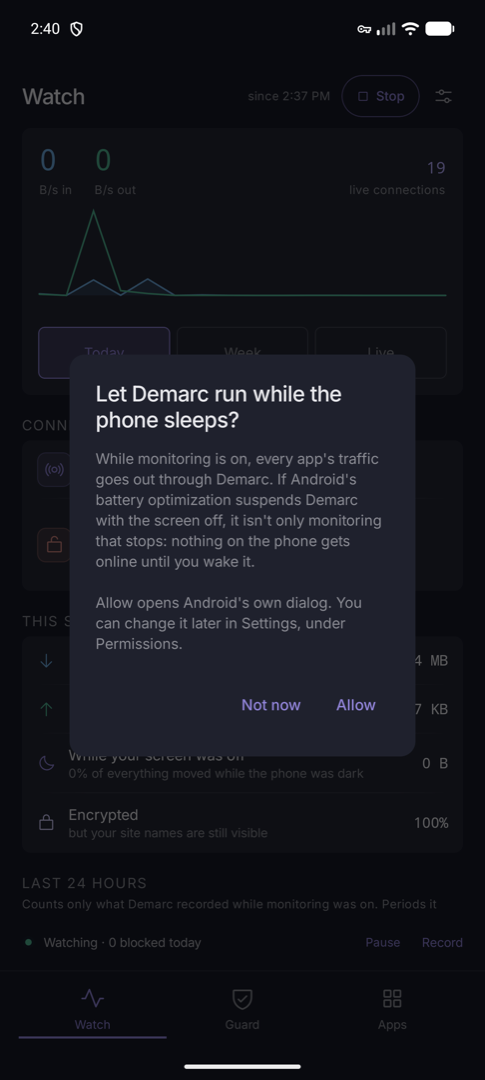
The Watch tab is the live picture: what is moving right now, what moved today, and which app is responsible for each connection.
04
Today
Throughput in and out, live connection count, and the session totals underneath: downloaded, uploaded, how much moved while your screen was off, and how much of it was encrypted.
The connection card above names the network you are on and flags what it can see about you — an open Wi-Fi network, or a resolver that can read every name you look up.
05
Live connections
Every flow as it opens: the destination, the app that owns it, and bytes each way. Search by app or site, and filter to what you care about.
Group repeats folds a chatty app's twenty connections to the same host into one row with a count, so the list stays readable while something is busy.
06
One connection, in full
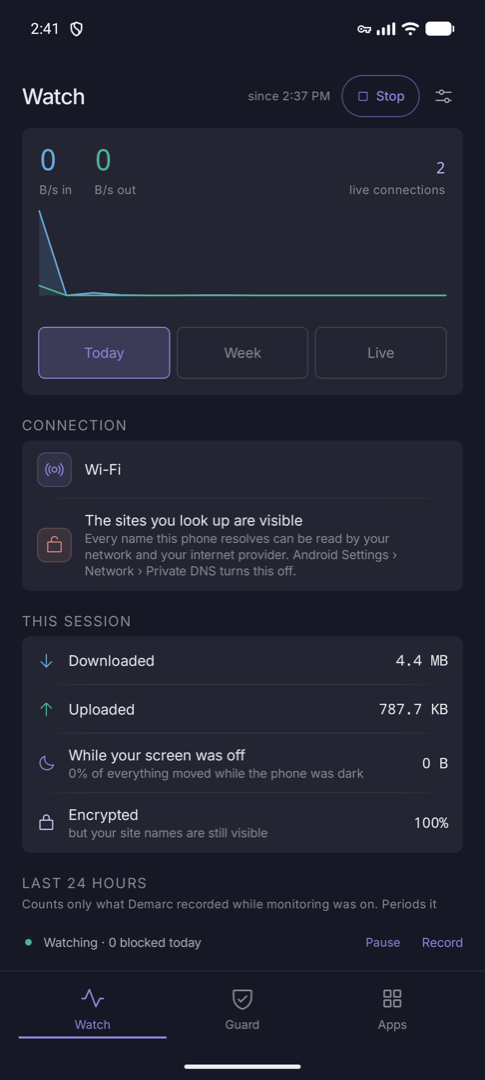
Tap any flow for the whole story: protocol, state, where it went, the server name from the TLS handshake, the app's own TLS fingerprint, country and network operator, and what was readable to anyone in between.
The actions at the top act on what you are reading: block the site, cut the app off, or build a rule from this connection, covered further down.
Apps
The same traffic, sorted by who is responsible for it.
07
Privacy grades
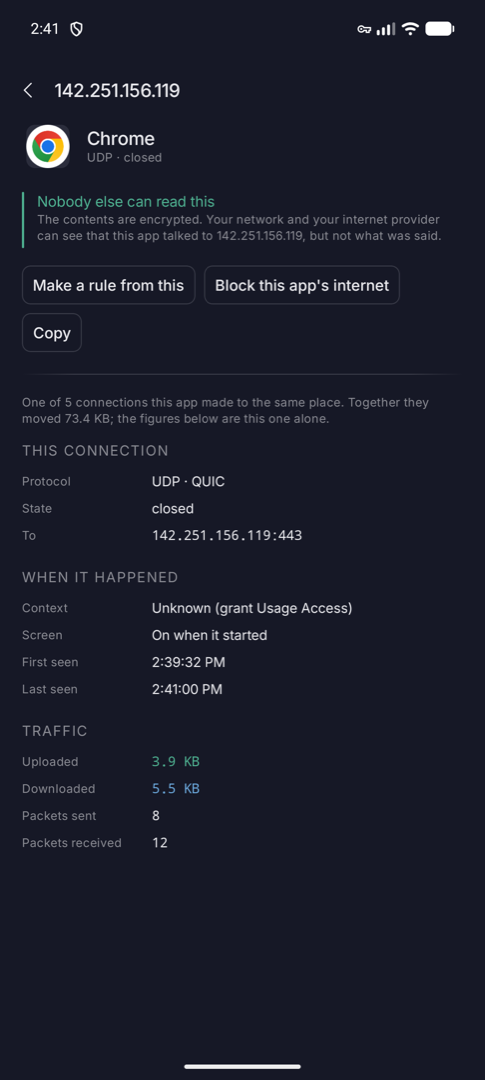
Every app that used the internet, graded A–F on what it actually did: trackers contacted, data sent unencrypted, how much it uploads, and how much it moves while you are not using it.
The grade is a summary, not a verdict. Tap an app for the reasons behind it.
08
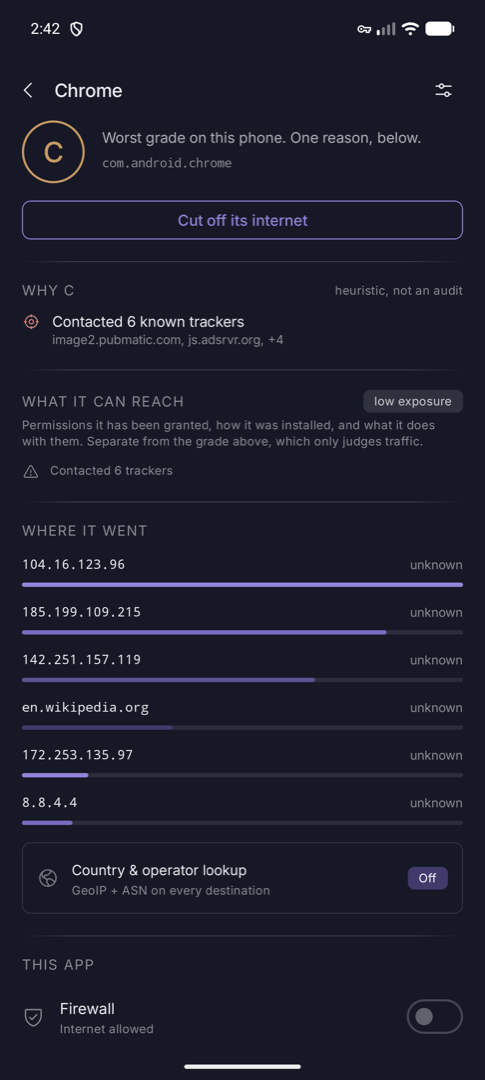
One app, in full
An app's own connections, the names it looked up, where its data goes by country, and a data-leak assessment with the reasons spelled out.
The controls here are per-app: block its internet access, or record just its traffic to a .pcap you can open in Wireshark.
Guard
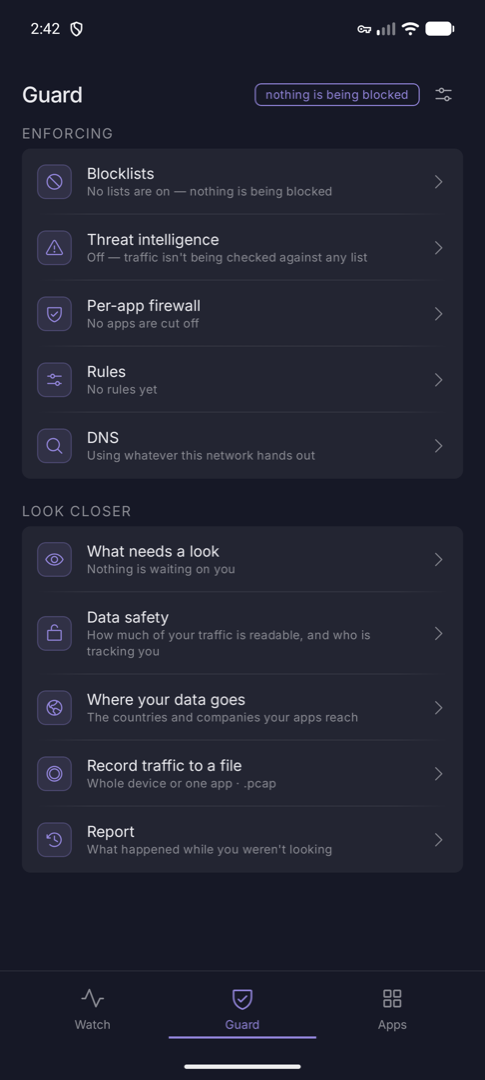
Watch shows you what is happening. Guard is where Demarc acts on it.
09
What is enforcing
Five rows, each saying what it is currently doing rather than just naming itself: whether any blocklist is on, whether threat intelligence is checking anything, how many apps are cut off, how many rules are active, and which resolver your lookups use.
The tag beside the title reads "nothing is being blocked" when nothing is, rather than showing a count of zero — which would look the same as a quiet day.
10
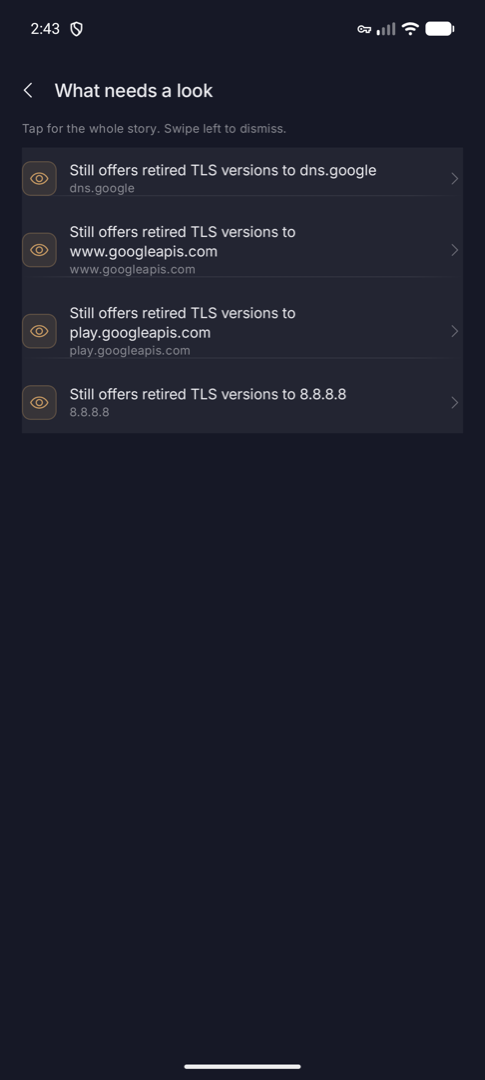
What needs a look
Findings from the detectors, answerable items first and then by severity: an app that sent something readable, a connection beaconing on a schedule, a handshake still offering retired TLS versions.
Tap one for the whole story. Swipe left to dismiss it, right to act on it where there is something to do.
Rules
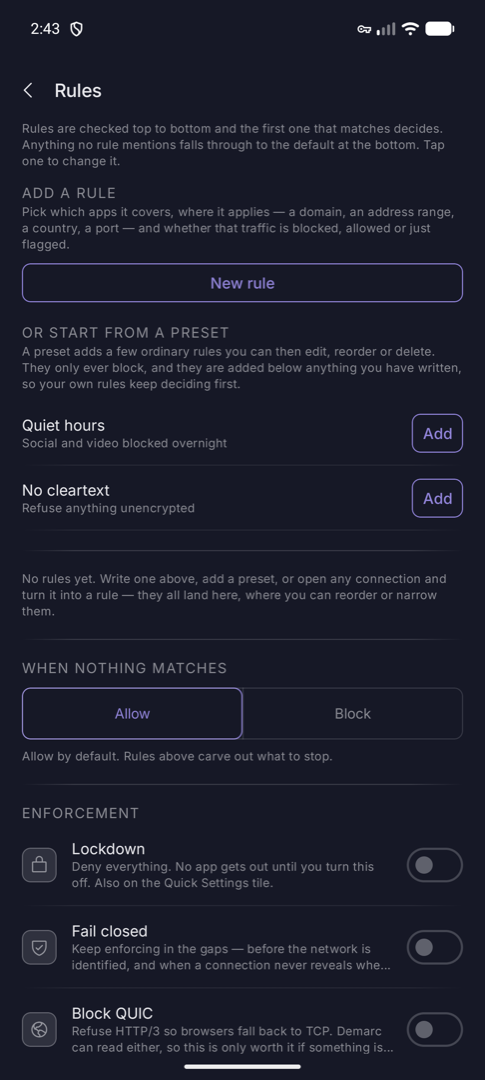
One ordered list, checked top to bottom, first match decides. Anything no rule mentions falls through to the default at the bottom.
11
The list
Numbered in the order they are evaluated, because order is the thing people get wrong about firewalls. Each row carries its own move-up, move-down, on/off and delete.
A preset writes a few ordinary rules you can then edit, reorder or delete — quiet hours, no cleartext. Tap any rule to change it; it keeps its place in the list.
12
Writing one
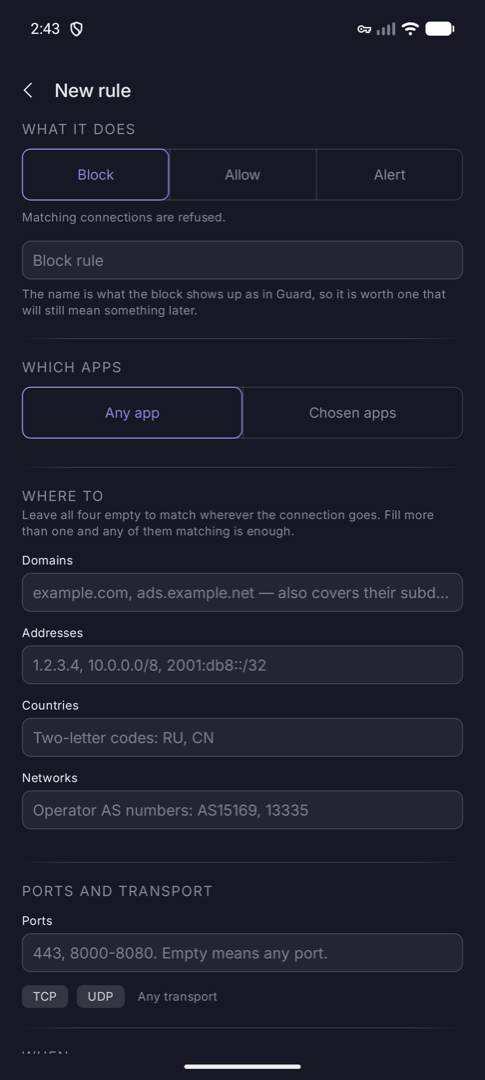
A rule can name any combination of: which apps, which domains, which address ranges, which countries, which network operators, which ports, which transport, and what hours it applies.
Block, allow or just alert. A preview at the bottom says what the current combination actually matches, in the same words the list uses, so the form reads as one sentence before you save it.
13
Straight from a connection
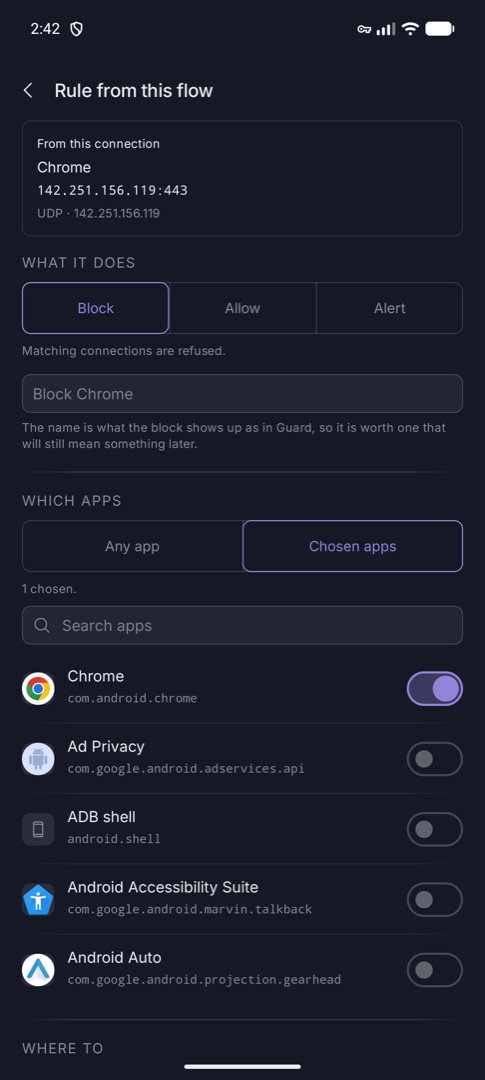
Open any connection and tap Make a rule from this. The form arrives filled in from that flow: the app, the domain, the port, the transport.
None of it is locked. The useful rule is often a widening of what you were looking at: this app, this domain, any port.
Blocklists & settings
What Demarc blocks by category, and what it keeps.
14
Blocklists
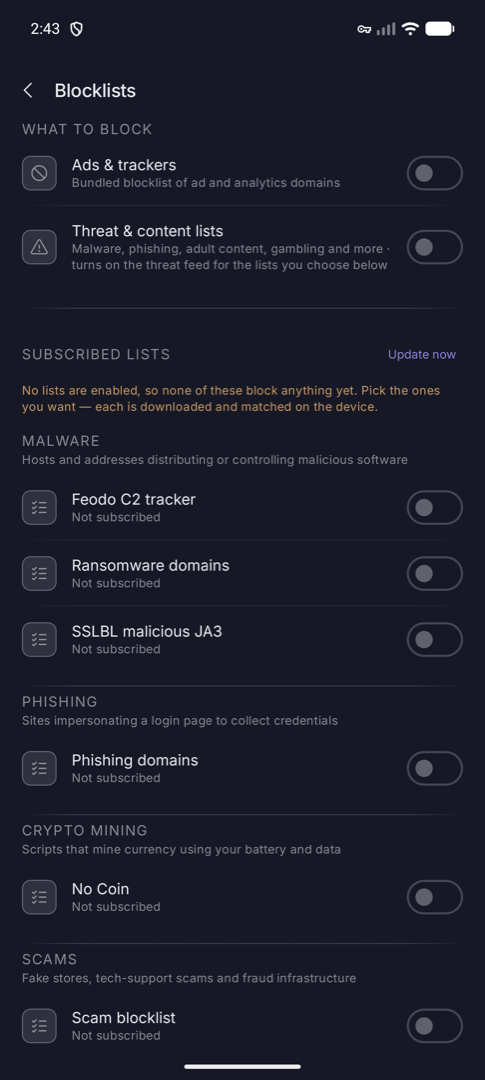
Ten lists across ten categories, each switched on individually. None are on by default — every blocklist has false positives, and which ones your phone accepts is not a choice to make on your behalf.
Lists are downloaded and matched on your device, so what you look up is never sent to whoever publishes them. Your own domains and addresses go on top.
15
Settings
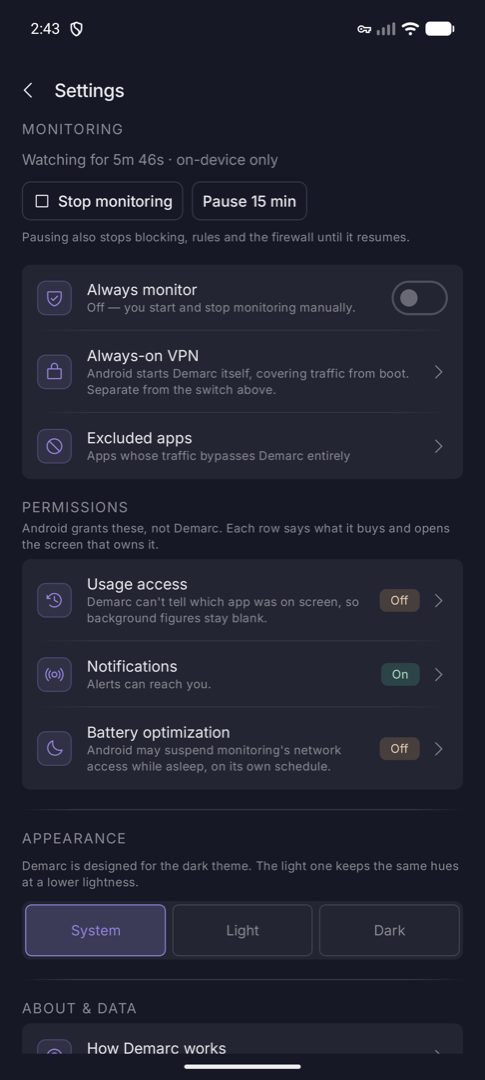
Monitoring behaviour, theme, and what Demarc has stored: live state plus per-connection destinations for 30 days, hourly totals for two weeks, daily totals for 90 days. All of it on the device, and all of it clearable in one tap.
Credits names every blocklist and who maintains it. The Disclaimer is the same text the welcome screen showed you.